

🛠️ A Tour of the Dashboard: How to Manage Your Sales, Reports, and Store Settings on the “Funoon” Platform”
3 min read
- 📦 1. Orders Section (Manage Your Sign Sales)
- 💳 2. Payments Section (Financial Transaction Log)
- ⚙️ 3. Settings Section (Configuring the Art Store)
- 👤 4. Profile and Communication Section (Managing Your Account as an Artist)
- 📊 5. Reports Section (Technical Performance Statistics)
- 💬 6. Reviews Section (Ratings and Buyer Reviews)
Find out how to track orders, analyze reports, and adjust your technical account settings step by step:
📦 1. Orders Section (Manage Your Sign Sales) #
This section is designed to track all purchases made for your artwork and manage the logistics involved.
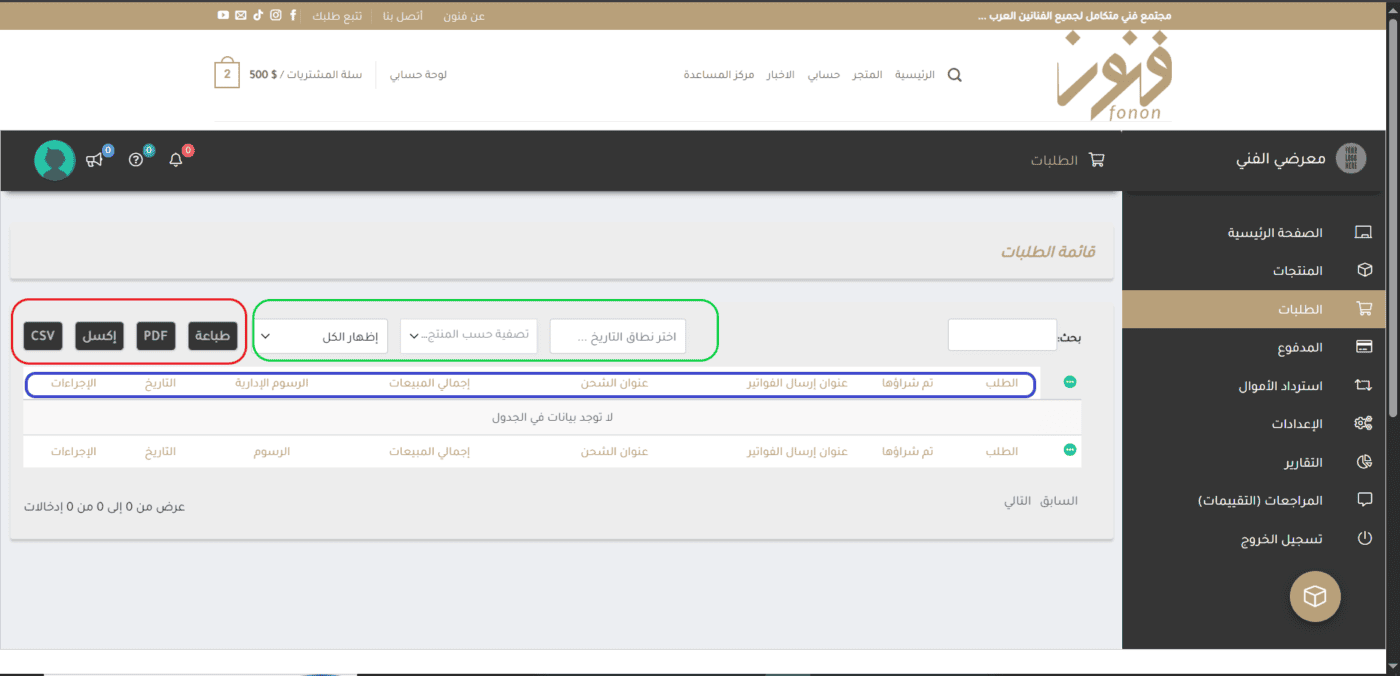
- Red box: Quick Data Export Buttons; you can click “Print” To get a hard copy, or to export the order list as a file “PDF” or “Excel” or “CSV” To organize your accounts.
- Green Box: Smart filters: These allow you to sort orders by time range and purchase date, or filter them based on a specific product (painting) to track its sales performance.
- Blue Box: Order Data Table: Displays detailed information, including (order number, purchase date, billing address, actual shipping address for the purchaser, total sales amount, and administrative fees deducted), along with a field “Procedures” To update the order status (In Progress/Shipped).
💳 2. Payments Section (Financial Transaction Log) #
Here you can track your store's financial performance and view details on the amounts received from the sale of paintings.
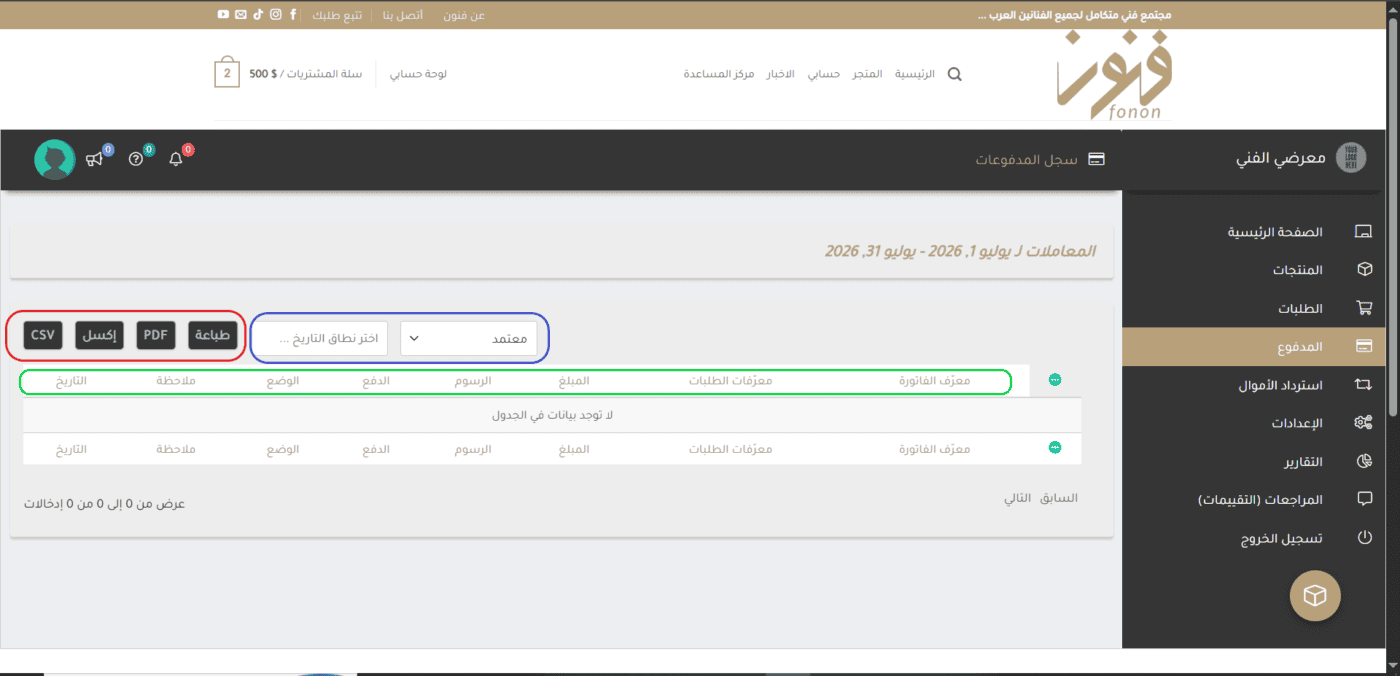
- Red box: Quick export and print buttons (Print, PDF, Excel, CSV) to save your financial records locally.
- Blue Box: Transaction Filter: Allows you to specify a custom date range and track the status of payments (such as approved payments).
- Green Box: The table's main header row; it shows you the details of each financial transaction: (invoice ID, IDs of associated orders, total amount, fees deducted, payment method, current financial status, date, and any additional notes).
⚙️ 3. Settings Section (Configuring the Art Store) #
This is the administrative backbone of your store, and it is through this that you build the branding and logistical infrastructure of your personal store.
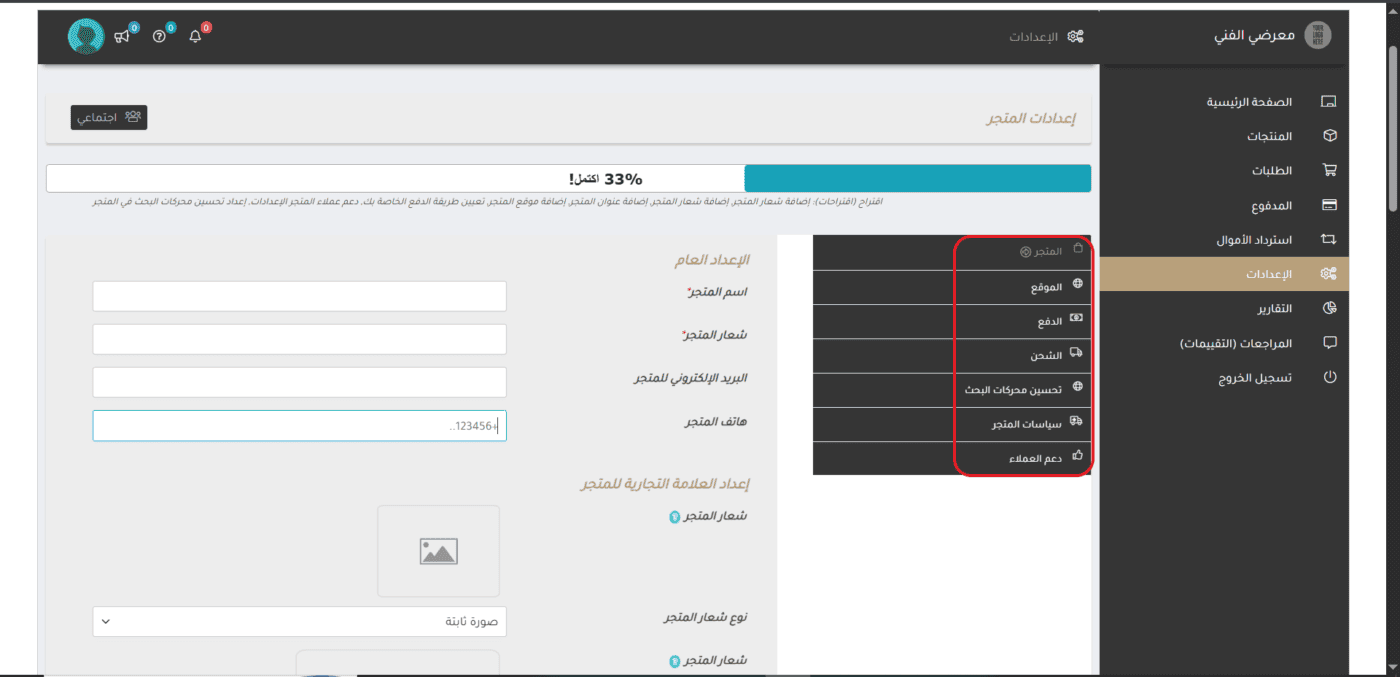
- Red side bar: The settings submenu, which includes precisely defined options:
- The store: To enter the store's general name, logo, email address, and phone number.
- Location: To specify the geographic address of your studio or warehouse.
- Payment: To link and set up your payment method for receiving your earnings.
- Shipping: To determine shipping zones and delivery rates.
- Search Engine Optimization: To optimize your store and ensure it appears professionally in Google Search.
- Customer Support: To set up a way to contact you.
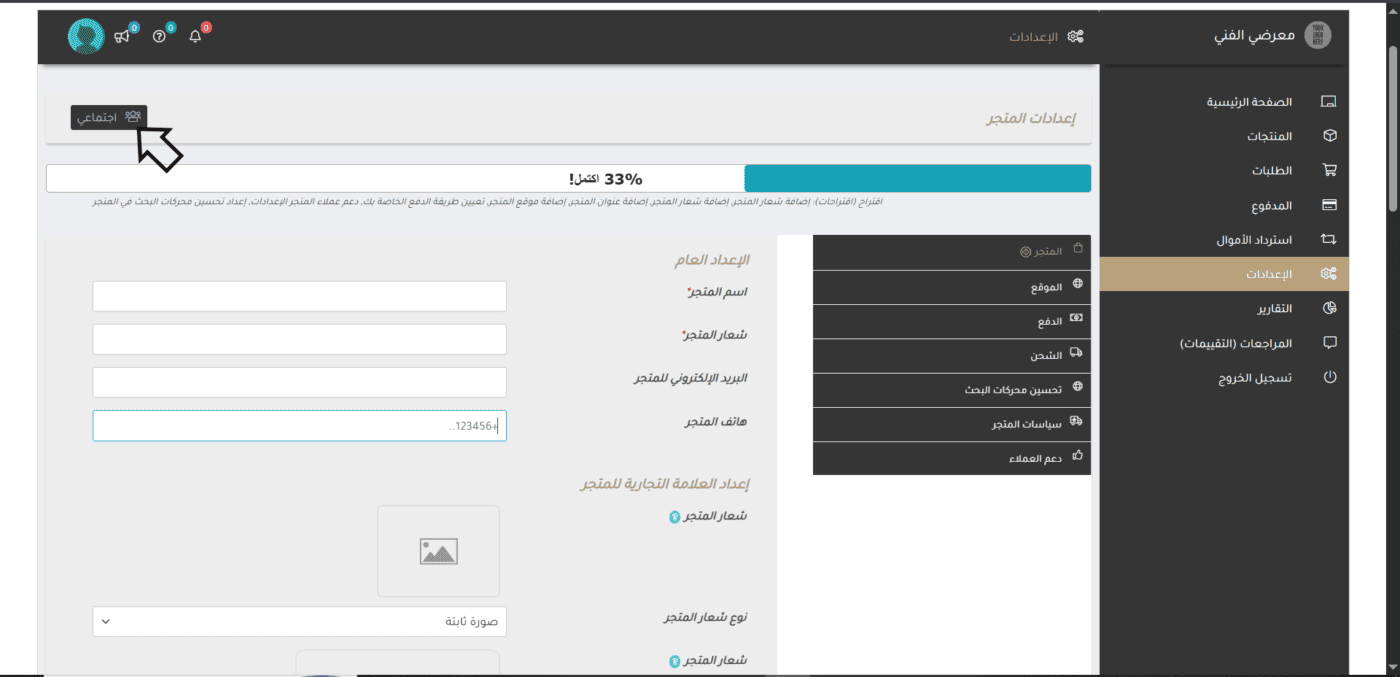
- The black arrow (“Social” button): A quick button at the top lets you go directly to link your store's social media accounts (Facebook, Instagram, etc.) so they appear to buyers.
👤 4. Profile and Communication Section (Managing Your Account as an Artist) #
A personal section for managing your personal data as an independent artist, separate from the general store settings.
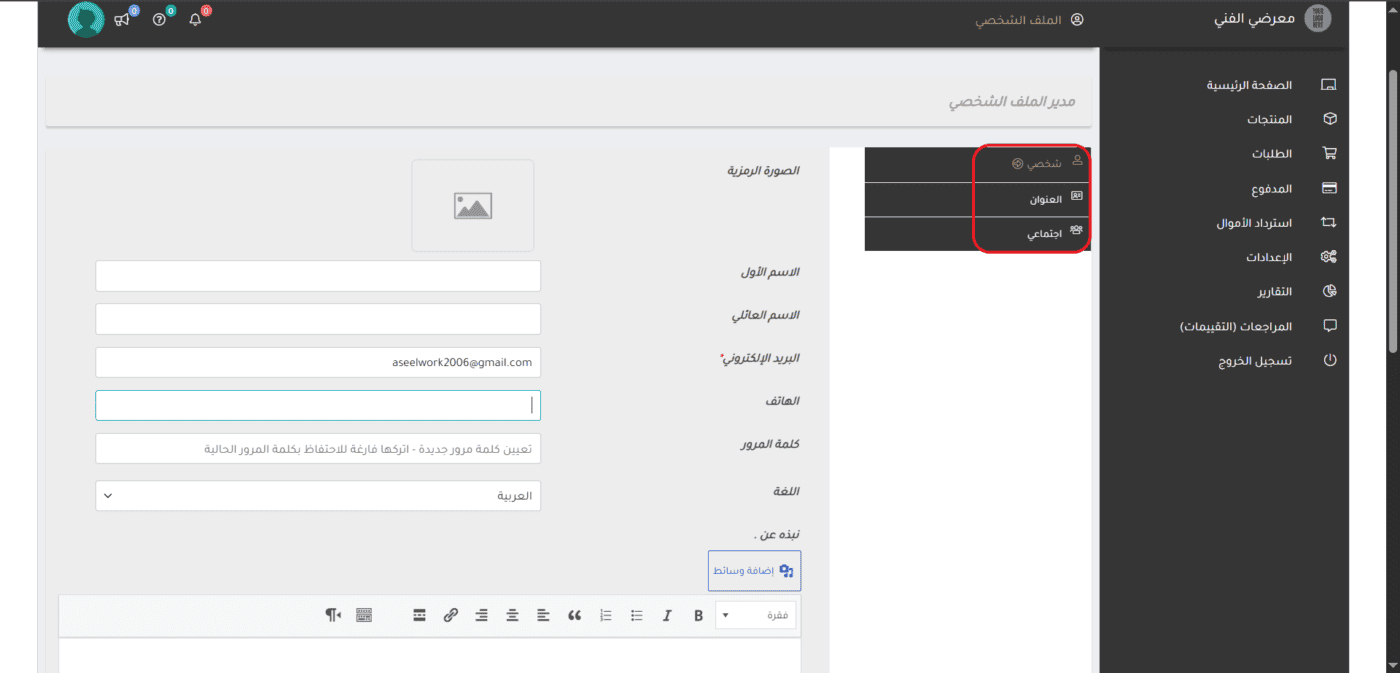
- Red side bar: The File submenu; it lets you choose from three main options:
- Personal: To change your profile picture, first and last name, email address, and set a new password, as well as write a “About Me” section explaining your artistic philosophy.
- Title: To edit your profile information.
- Social: To add links to your social media accounts to document your artistic activities.
📊 5. Reports Section (Technical Performance Statistics) #
Your analytics tool for evaluating your store's performance and tracking the level of interest in your art over different time periods.
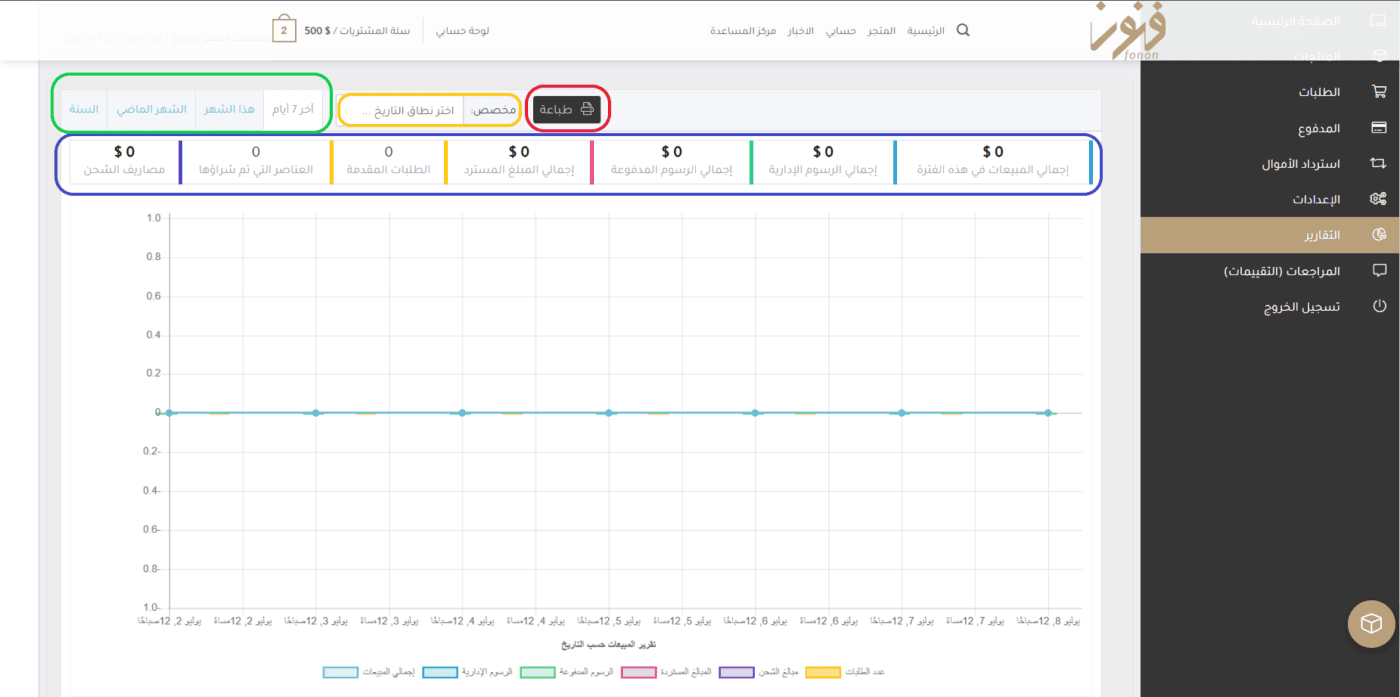
- Green Box: Time-range filters: With a single click, you can view a sales report (for the last 7 days, this month, last month, or the entire year).
- Yellow box: “Custom” option: Allows you to specify a precise date range (from... to...) using the button “Print” (surrounded by a red border) To generate the report immediately.
- Blue Box: Key Metrics Dashboard: Provides a quick overview of your financial performance and includes: (total sales, administrative fees, fees paid, total refunds, orders placed, items purchased, and shipping costs), followed by an illustrative chart below.
💬 6. Reviews Section (Ratings and Buyer Reviews) #
A space dedicated to listening to your audience and reading their opinions about the paintings they've purchased from you.
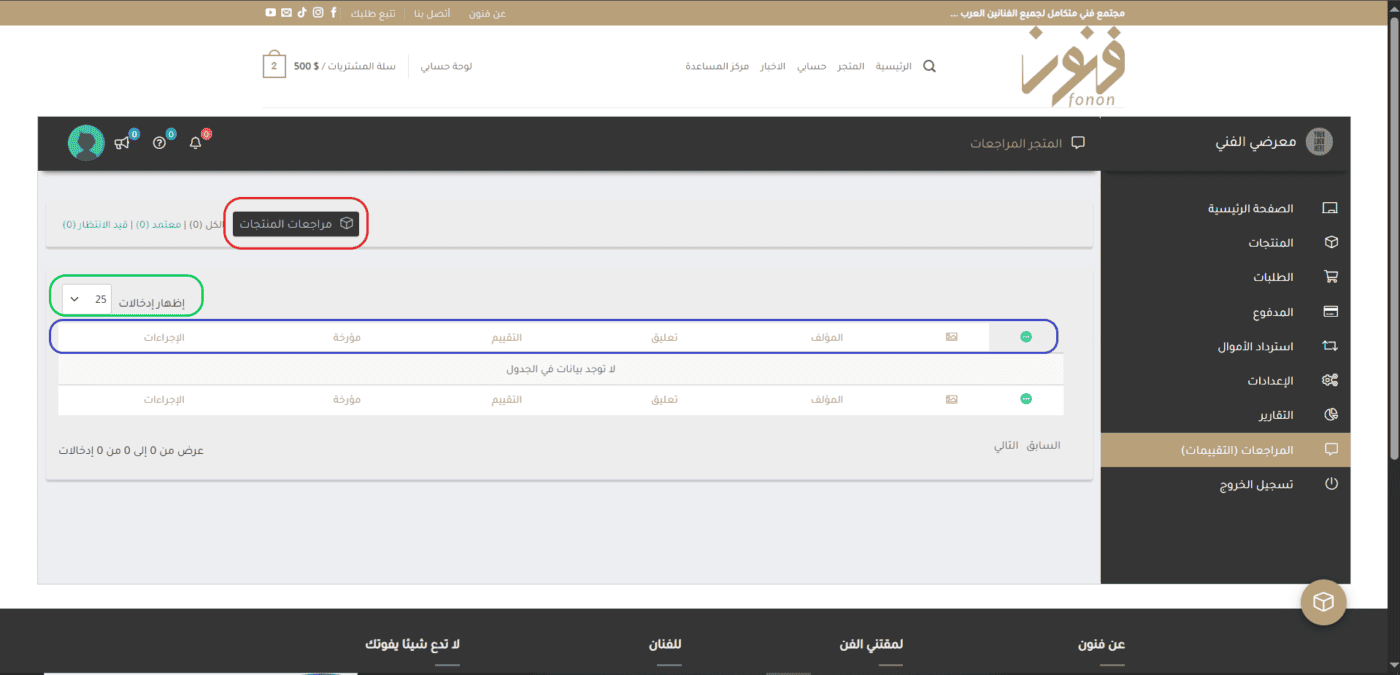
- Red box: Tab “Product Reviews”; This is the main tab that compiles buyers' comments on your artwork.
- Green Box: Item Count Control: Allows you to specify the number of reviews displayed per page (for example, show 25 entries).
- Blue Box: Rating Control Table; displays (image of the painting, author's/buyer's name, written comment, number of stars/rating, date of review) with a column “Procedures” To approve or respond to the evaluation.


Powered by BetterDocs