

The Collector's Journey: How Do Visitors Browse the “Funoon” Platform and Purchase Artworks?
2 min read
An illustrated guide that walks customers and buyers through the steps for navigating the platform seamlessly, from exploring artworks in the main gallery and categories to completing the payment process.
🎥 Step 1: Video Tutorial (Quick Purchase) #
This short, straightforward video shows shoppers how to proceed directly to checkout. As soon as a visitor likes the images of the artwork shown in the video, they can click directly on the attached link to go to the product page, select the quantity, and then click the “Add to Cart” button to begin the process of purchasing the artwork in just a few seconds.
🖼️ Step 2: Options for Exploring and Browsing the Art Gallery #
If a user wants to take their time selecting paintings rather than using the quick browsing method shown in the video, the platform offers flexible browsing tools:
- Visit the main art exhibition: When you access the home page, a prominent button labeled “Art Exhibition”. Users can click on it to go to the comprehensive gallery and start browsing all the paintings available on the platform in an organized manner, regardless of the quick path.

- Browse by Artistic Categories: (Image: Browse by Categories.jpg) To make it easier to navigate, visitors can scroll down to browse paintings based on their preferred artistic genre (such as surrealist painting, abstract painting, photography, calligraphy, or realistic painting), making it easier for them to find exactly the artistic style they’re looking for.

🛒 Step 3: Review Your Shopping Cart #
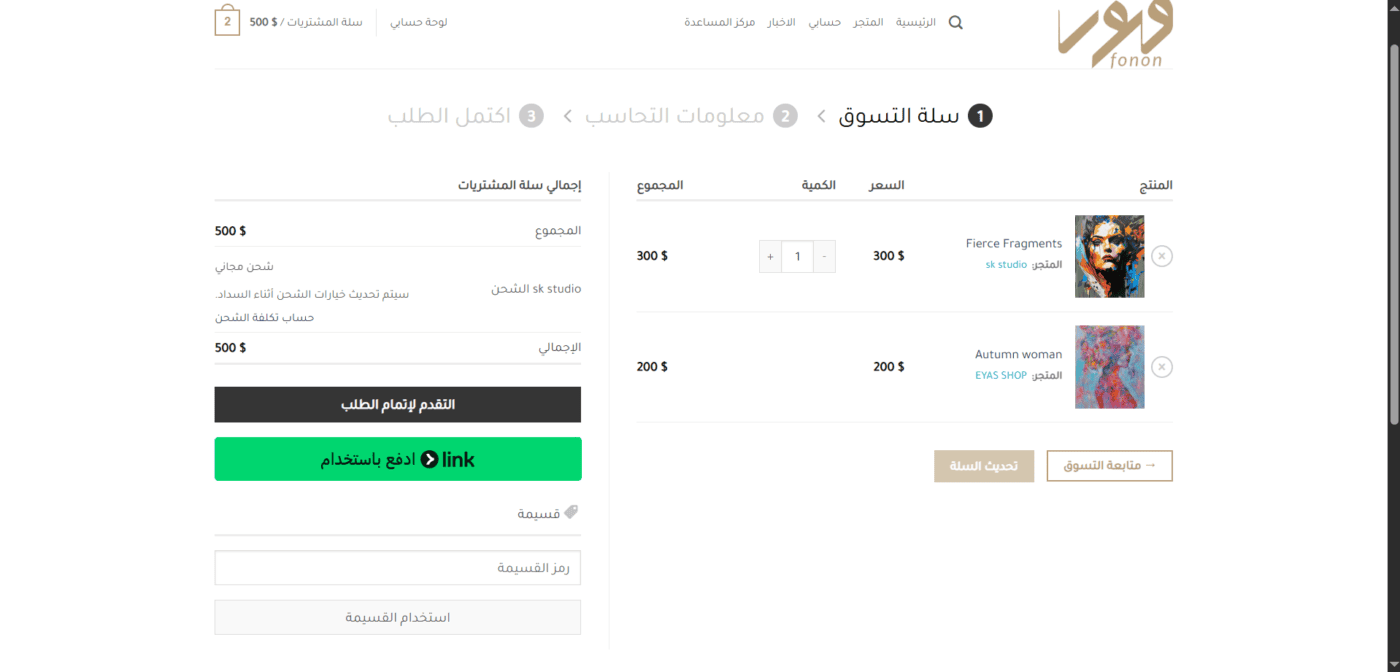
After selecting their favorite artworks, the buyer is taken to a screen Shopping Cart To review their orders before payment; this screen includes:
- Product List: In it, the buyer reviews the name of the artwork, the store or the artist who created the work, the price of the artwork, and the quantity requested, with the option to modify it.
- Total shopping cart: It shows the subtotal, the shipping cost (or free shipping), and the final total.
- Follow-up options: The buyer can click on “Proceed to Complete the Request” To proceed to the shipping information, or use the direct quick checkout button.
💳 Step 4: Billing Information and Order Confirmation #
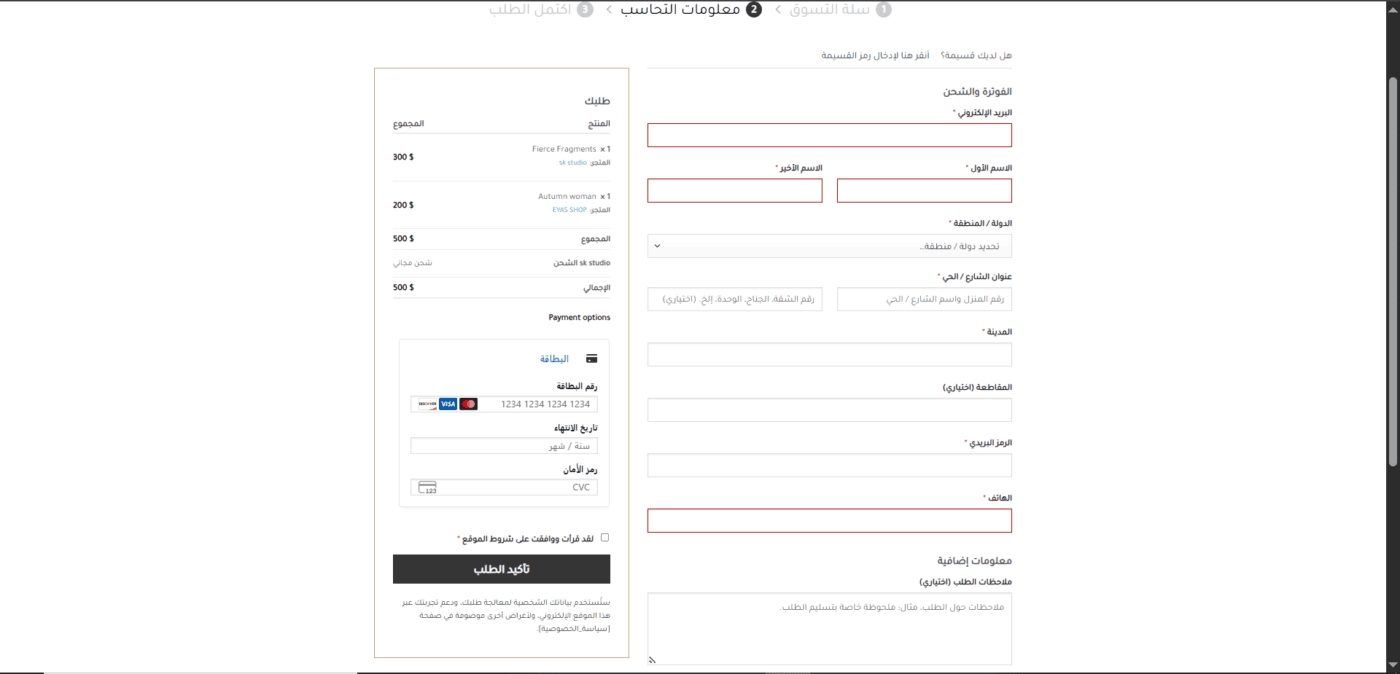
The final step in closing the transaction and shipping the painting to the buyer's location involves filling out the following fields:
- Billing and Shipping: The customer enters their full name and email address, selects their country/region, and then provides their street address, city, and ZIP code to ensure that the sign is delivered safely.
- Card and Payment Information: On the left, you'll see a summary of your final order and a secure field for entering your payment card details (card number, expiration date, and CVC code).
- Additional notes: An optional field where the buyer can enter any specific delivery instructions; the process is completed by clicking the button “Order Confirmation” To successfully complete the process and begin logistical preparations.


Powered by BetterDocs